
Listen to the words inside your images.
Turn a screenshot or a photo of printed text into speech on iPhone. Hearem extracts the words with OCR, lets you review them, and reads them aloud in a voice you choose.
- Screenshots, camera photos, and saved images
- OCR runs on-device by default
- Review and edit before speech generation
- Natural AI voices are an online option
Free to start · No credit card required · Includes on-device Apple voices
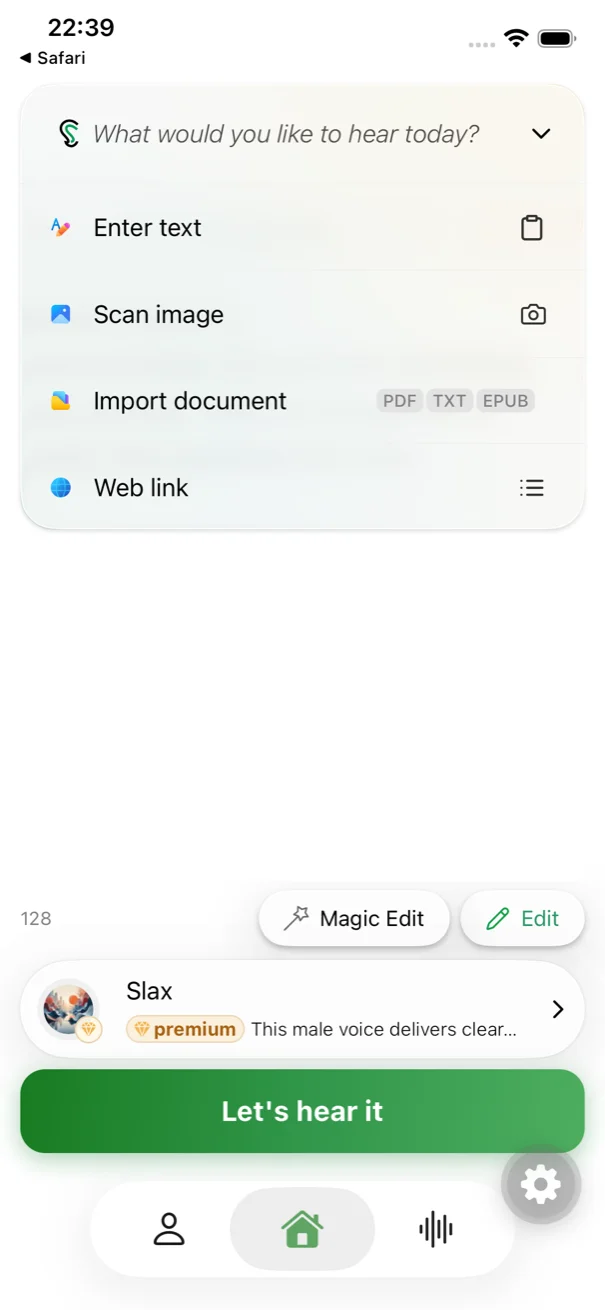
A screenshot can become something you actually listen to.
Useful text does not always arrive in a document. It might be a photographed handout, a book page, or a passage saved as a screenshot. Bring the image into Hearem, extract the words, and use the same listening workflow as typed text.
Start with the camera or your photo library.
Capture printed text or choose an image already saved on your device. If a photo is still in iCloud, download it locally before importing it.
Extract words, not a description of the scene.
OCR reads visible text. Image-to-speech here means recognizing and reading those words; it is not a service for describing a photograph, interpreting a chart, or identifying objects.
Check names, numbers, and reading order.
Review the extracted text before generating audio. A sharp image with straight, well-lit text gives you a better starting point; complex columns, handwriting, and low-quality photos may need correction.
Choose a voice and keep listening.
Use a supported AI voice for natural narration, or an installed Apple system voice as a basic on-device alternative. Generated audio supports background playback and saved listening progress.
How to turn an image into speech
Recognition and speech are separate steps, so you can correct the words before you listen.
Select or photograph the text
Use the camera or choose a screenshot or photo downloaded to your iPhone.
Extract with OCR
Let Hearem recognize the visible text. OCR runs on the device by default.
Review the result
Check the reading order and important details. Correct recognition errors or format the text before generating speech.
Choose a voice and listen
Generate narration with a voice that supports the text's language. Continue listening from the lock screen.
Local OCR does not mean every later step stays local.
Hearem uses on-device OCR by default. When you choose a cloud AI voice, the text needed for speech is sent to the corresponding provider. Installed Apple voices can generate speech offline in supported languages; AI editing and other online features have their own connection requirements.
- OCR extracts the words before speech generation.
- Cloud AI narration requires sending text for processing.
- Installed Apple voices are a basic offline fallback.
- Read the privacy policy before importing sensitive material.
OCR book page & screenshot reading
From photographed handouts to saved quote cards, hear text extracted straight from pictures.
“Clear narration gives thoughtful ideas room to breathe. Listen at your own pace, return to the important parts, and keep what stays with you. Make space for the ideas that deserve your attention.”
On-device OCR extracts words with high precision before speech generation.
Image to speech FAQ
Can Hearem read text from a screenshot?
Yes. Import the screenshot, extract its visible text with OCR, review the result, and generate speech in the app.
Can I photograph a printed page?
Yes. Photograph the text clearly, avoiding glare and excessive perspective. Check the recognized words and their order before you generate audio.
Will it describe what is happening in a picture?
No. This workflow extracts and reads visible text. It does not promise image descriptions, object recognition, or an interpretation of graphs and diagrams.
Are images and text always processed locally?
OCR runs on-device by default. Cloud AI voices need the relevant text to be sent to their provider, so the complete workflow is not necessarily offline or fully local.
Why does a photo fail to import?
Check whether the image has been downloaded from iCloud to your device. If it is already local and still fails, contact support with the file type and an example you are comfortable sharing.
Is OCR usage the same as speech usage?
Recognition and speech generation are separate operations with their own allowances. Apple system voices are the basic local option; other voices and processing features have plan or quota requirements.