
Turn your text into audio you can keep.
Type or paste your text, choose a supported AI voice, and generate an audio recording in Hearem. With Standard, save the result as a file or share it with another app.
- Start with typed text, notes, or imported content
- Save or share generated audio with Standard
- Merge generated long-text sections for export
- Native audio and subtitle (.srt) export
Free to start · No credit card required · Includes on-device Apple voices
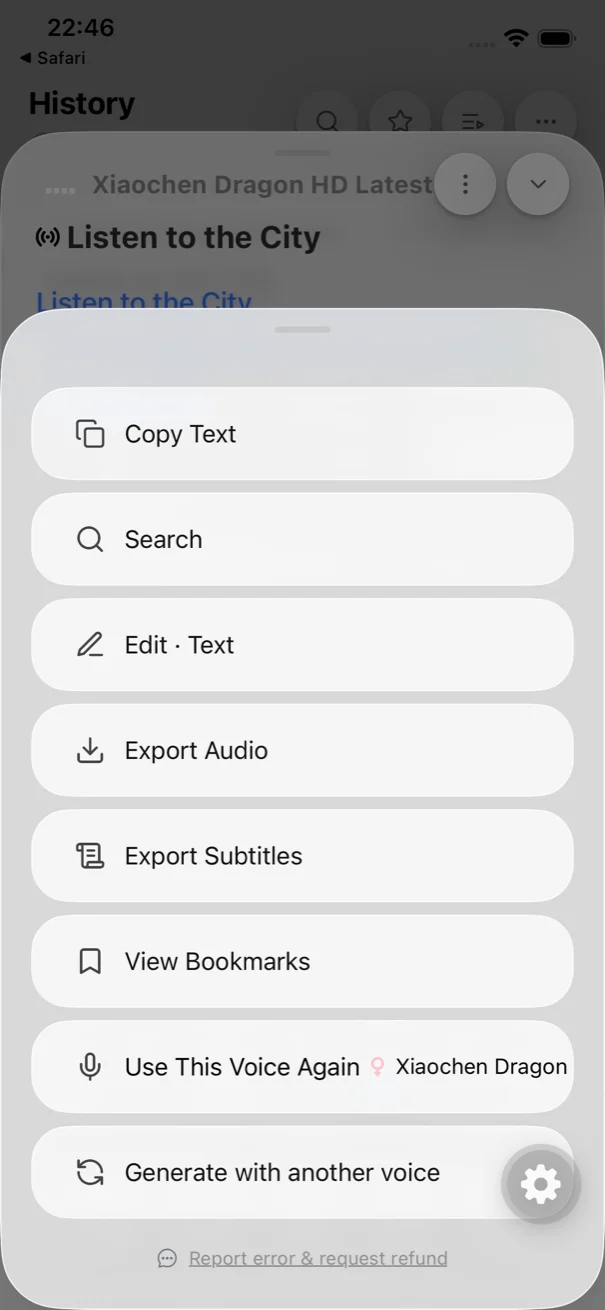
More than pressing play once: audio you actually own.
A listening session can stay in your Hearem history, or become a file you save elsewhere. Use it for study notes, an article you want to keep listening to, or your own writing. Generate the audio first, then choose how to keep it.
Start with your own words or imported text.
Type directly, paste a passage, import a document, extract a webpage, or recognize text in an image. Review the final text before choosing a voice.
Generate before you export.
Export saves audio that has already been generated. Choose a supported AI voice, check your character balance, and let the recording finish before opening the export action.
Keep long content together.
Hearem automatically splits long text to fit provider limits. Once its sections have been generated, you can merge them for export instead of managing each part as a separate recording.
Save a file or send it to another app.
Standard includes audio export. Use the available export or share action to save generated audio outside Hearem. Exported format follows the source recording; export is not a universal format converter.
How to convert text into an audio file on iPhone
You need Hearem and a Standard subscription to export generated audio. This webpage does not generate or download audio itself.
Add and review the text
Type, paste, or import the content you are authorized to use. Edit it before generation.
Select a voice and generate
Choose a supported AI voice and generate the recording. Long text is split into sections when needed.
Listen to a sample
Check pronunciation and content before exporting. Make changes to the source and regenerate when necessary.
Export with Standard
Save or share the generated audio. For a long recording, use merged export when all required sections are ready.
Need MP3 specifically? Check the source format.
Hearem exports the generated source audio, and its format depends on the voice and generation result. Do not assume that every recording will be converted to MP3. Check the exported file's format before relying on compatibility with another player or service.
- Audio export is a Standard feature.
- Export format depends on the source audio.
- Changing playback speed does not rewrite the exported file.
- When subtitles exist, Standard can also export SRT.
Export-ready audio quality
Listen to the pristine audio output ready for export to podcast players, Apple Watch, or car audio systems.
“Clear narration gives thoughtful ideas room to breathe. Listen at your own pace, return to the important parts, and keep what stays with you. Make space for the ideas that deserve your attention.”
Save audio files to Files or AirDrop without unexpected upsell barriers.
Text to audio and export FAQ
Can I download MP3 from this website?
No. This page describes the Hearem iPhone app, not a browser-based MP3 converter. In the app, Standard users can export generated audio, but the exported format depends on the source recording.
Is audio export free?
No. Audio and available subtitle export are Standard features. The free plan and Apple system voices should not be described as unlimited free audio-file export.
Does every voice export to MP3?
No universal MP3 conversion is promised. The exported format depends on the audio generated by the selected voice. Check the source and resulting file format for your use case.
Can I export one file from a long document?
Hearem supports merging generated sections for long-form audio export. Wait until the sections you need have finished generating, then use the merge/export option.
Will my playback speed be saved in the exported audio?
No. Changing speed in the player changes how you listen, not the already generated source audio. The exported file is not automatically rewritten at that playback speed.
Can I export subtitles as well?
When the recording includes subtitles, Standard users can export SRT from history or the player menu. Segmented long-form subtitles can also be exported in parts or merged.