
Take your next article off the screen.
Read webpages aloud on iPhone with Hearem. Share directly from Safari, automatically strip cluttered ads and cookie popups, and listen with natural neural AI voices while your phone is locked.
- One-tap Safari Share Sheet import
- Smart clutter & popup removal
- Background listening & lock-screen audio
- Automatic splitting for long journalism & essays
Free to start · No credit card required · Includes on-device Apple voices
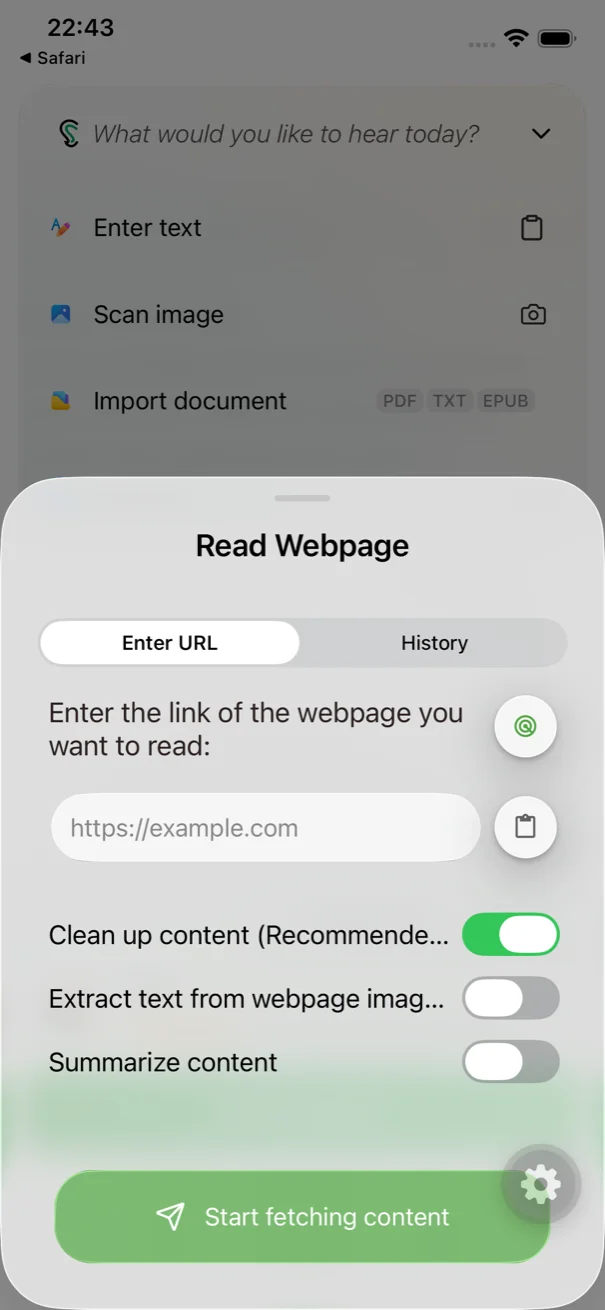
Turn unread tabs into high-quality audio you can actually finish.
Safari is full of bookmarks and tabs you never have time to read. Hearem extracts the pure article text, ignores ads and sidebars, and lets you digest long-form journalism on your daily commute.
One-tap Safari Share Sheet integration.
Tap the share button in Safari or Chrome to send any article straight to Hearem, or paste the link directly. You can also paste copied text with no link needed.
Smart decluttering strips out noise.
Hearem intelligently extracts the article body, leaving behind sticky banners, navigation links, and social widgets so you only hear the story.
Long-form journalism splits automatically.
No character limits stopping your flow. Hearem's Smart Split handles 10,000+ word essays smoothly, generating continuous playback.
Lock your phone and walk.
Enjoy true background playback and lock-screen audio controls with synchronized subtitle tracking.
How to read a webpage aloud on iPhone
Listen to any article in three simple steps straight from your mobile browser.
Share from browser
Tap 'Share' in Safari and select Hearem, or copy and paste the URL into the app.
Preview clean text
Hearem automatically strips out banners and clutter, presenting pure article text.
Choose voice & listen
Pick a natural neural voice from MiniMax, ElevenLabs, or Azure and start listening.
Lock screen & resume
Put your phone in your pocket and listen anytime; progress is automatically saved.
Clean extraction respects reader privacy.
Hearem parses accessible article text without tracking your browsing habits. For pages behind paywalls, simply copy the authorized text and paste directly into Hearem.
- Filters out ads, cookie banners, and navigation clutter.
- Supports direct text pasting for subscription paywalled content.
- Combines on-device reading and cloud neural voices.
- Saves playback position across multiple reading sessions.
Clean web article reading
Hear how extracted web content sounds once clutter, cookie banners, and navigation menus are removed.
“Clear narration gives thoughtful ideas room to breathe. Listen at your own pace, return to the important parts, and keep what stays with you. Make space for the ideas that deserve your attention.”
Clean extraction means you hear the author's writing, not page navigation or social widgets.
Webpage to speech FAQ
Can I use this as an online webpage reader?
This is a product page for Hearem on iPhone, not an online converter. Install and sign in to the app, then share a URL or paste the text to start listening.
Can it read a page behind a login or paywall?
Hearem may not be able to extract those pages from a URL and does not bypass access restrictions. You can paste text that you are authorized to access and use.
Do I need to split a long article myself?
No. Hearem can split long content automatically based on the chosen voice provider's input limit and generate the sections for continuous listening.
Will it continue with my iPhone locked?
Yes. Generated audio supports background and lock-screen playback, and Hearem saves your listening progress.
Can I save the article as an audio file?
Standard users can export generated audio as a file or share it with another app. The file format depends on the source audio; exporting is not a guarantee of MP3 conversion.
Is webpage reading free?
The free plan includes basic allowances for webpage reading and access to Apple system voices. Higher allowances, premium AI voices, and export have plan requirements. See the current pricing page for details.